

INSPECTION REPORT TOOLS
Turn Your Inspection Report Into a Negotiation Tool
Every home inspection report from Details Home Inspections comes with a built-in Repair Request Builder — a free tool that lets you (or your agent) turn any defect we find into a professional, itemized request in minutes. No extra software, no extra cost, no extra steps to set up. It's already part of your report.
Whether you're a buyer heading into negotiations, an agent putting together a request for your client, or just want a clean punch-list for a seller — this is how it works.
Why it Matters
Finding issues during an inspection is only half the value — knowing what to do with them is the other half. The Repair Request Builder lets you:
Turn any defect straight into a formal repair or credit request
Add your own notes on whether you want it repaired, replaced, or credited
Generate a clean, shareable, professional-looking document in a couple of minutes
Skip the back-and-forth of manually retyping report findings into an email
This is one of the reasons agents keep coming back to us — it makes the report actually usable at the negotiating table, not just a PDF that sits in an inbox.
How to Access It
Once your report is published, you can get to the Repair Request Builder two ways:
From your published report:
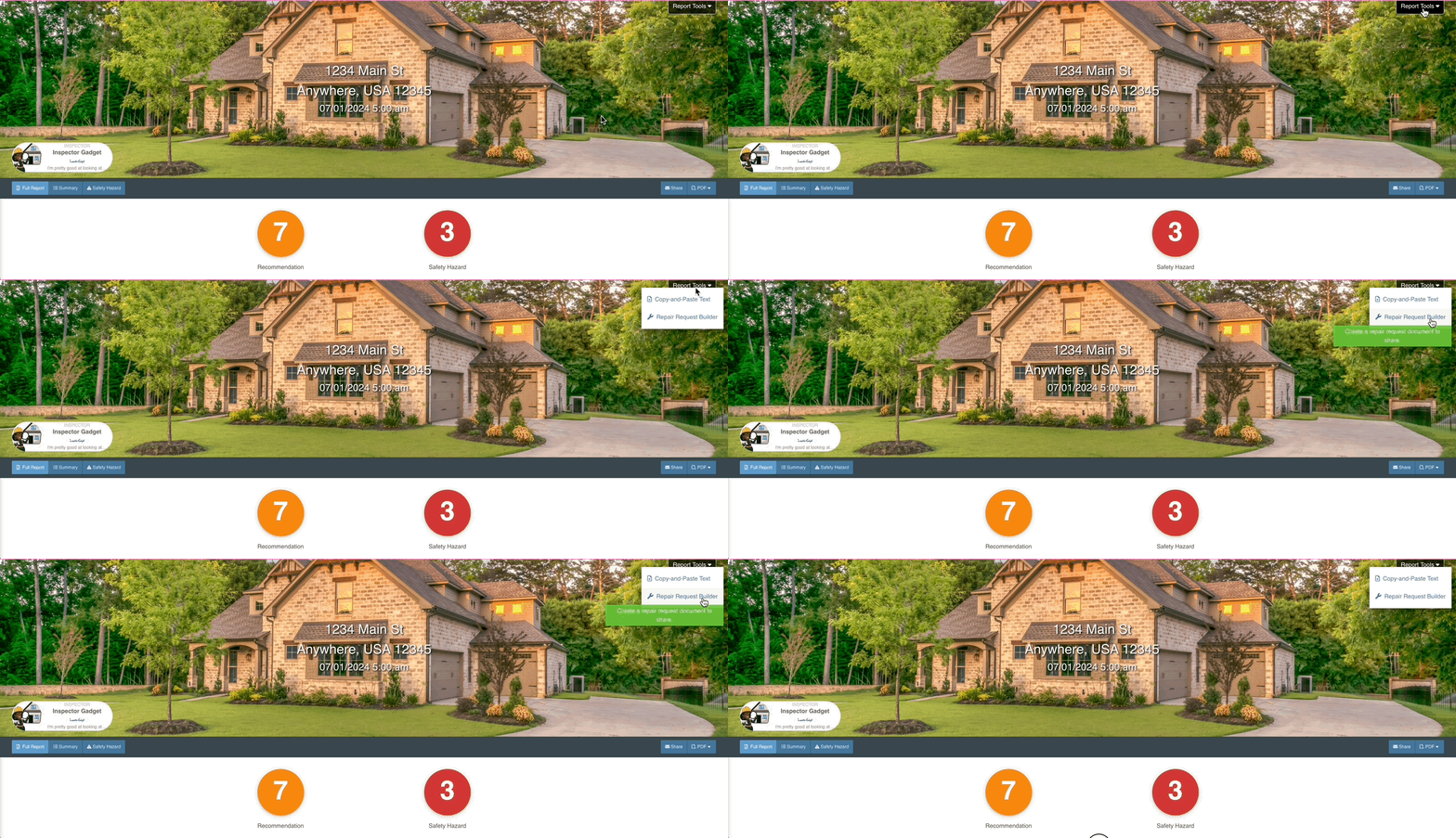
Open the report on the web, click Report Tools in the top right, and select Repair Request Builder.
From your client portal:
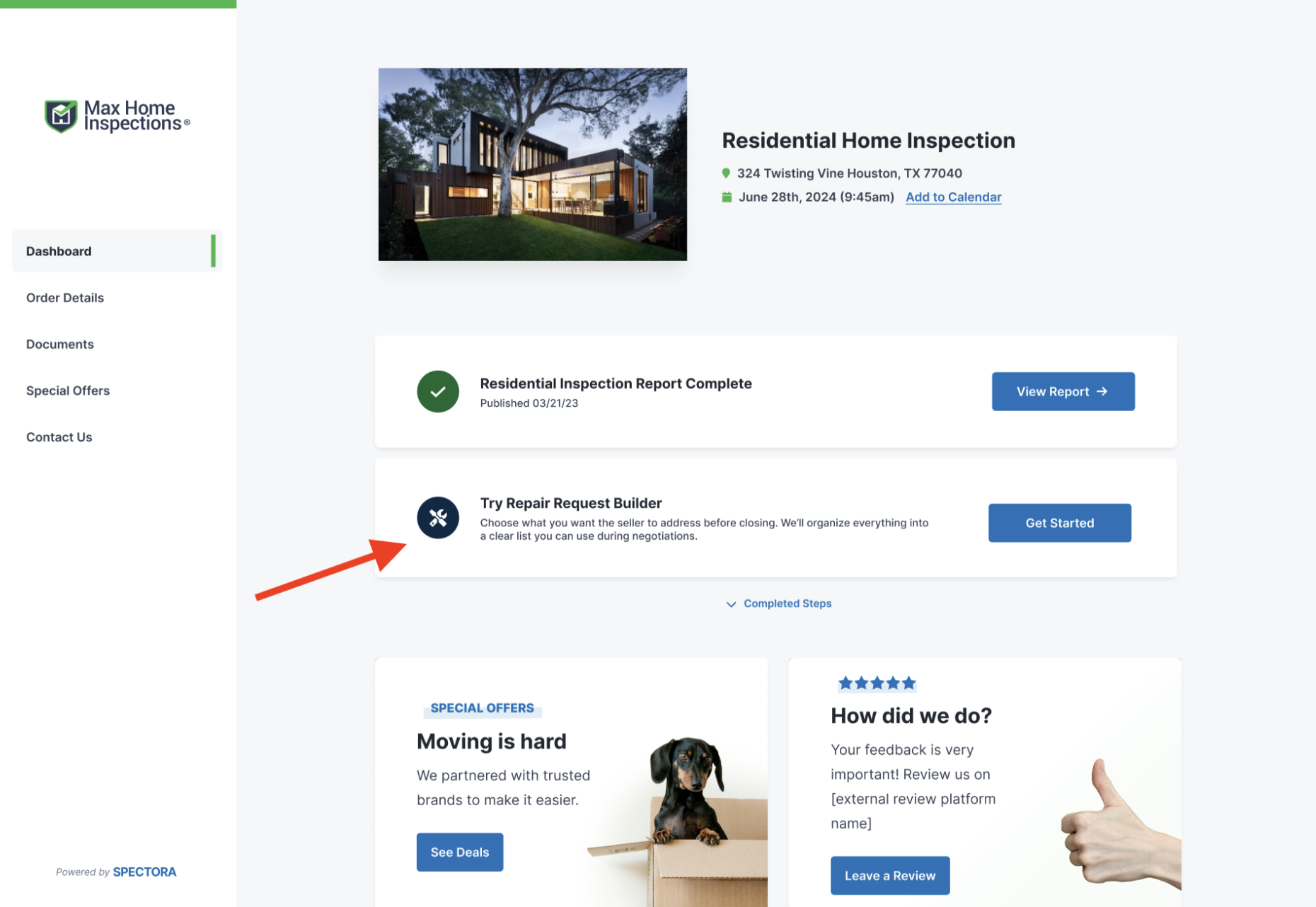
Go to your inspection's client portal and look for the Try Repair Request Builder prompt — click Get Started. This shows up automatically once you've viewed your report.
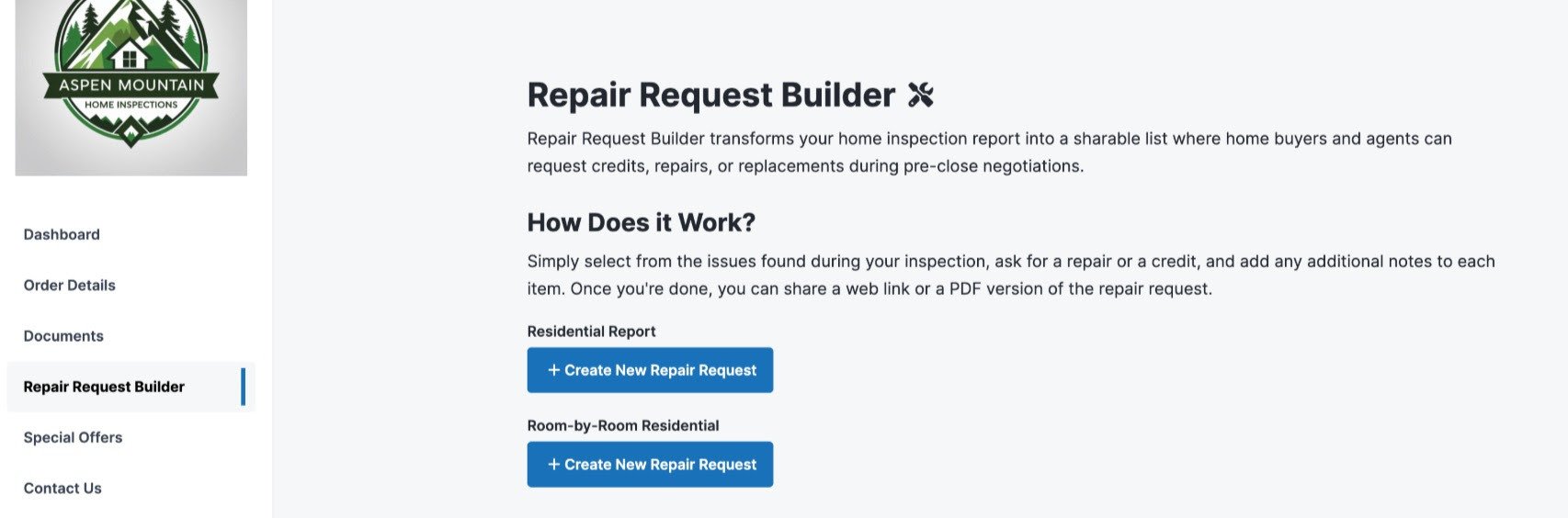
If your inspection includes more than one report (say, a home inspection plus a sewer scope), you'll be asked which report you want to build the request from.
Agents: if you're not seeing this in your portal, ask us to resend your confirmation email with the report link included, or have your client forward you their portal link directly.
Building your Repair Request

Quick tip: Click on the image above to expand it in another window.
Here's the process from start to finish:
Name your document — edit the title in the upper left so it's easy to identify later (e.g. "123 Main St – Repair Requests").
Sort it your way — organize the list by original report order, severity, category, recommendation, or dollar amount (high-to-low or low-to-high).
Add a top note — write a short message that appears at the top of the request, if you want to set context before the itemized list.
Select your items — check the individual defects you want to include, or hit Select Visible Defects to grab everything at once.
Request a credit (optional) — click Credit on any item to attach a dollar amount you're asking for.
Add a comment (optional) — click Comment to note whether you want a repair, a replacement, or something specific.
Preview it — check how the finished document looks before sending.
Create it — this generates your shareable link.
Share the link — copy it to send directly, or open it to view.
Note: Everything autosaves as you go, so you can step away and pick it back up without losing your work.

Editing an Existing Repair Request
Need to add something you missed, or adjust an amount? You don't have to start over.
Quick tip: Click on the image above to expand it in another window.
Open the Repair Request using its original link.
Click the orange Edit RRB button in the lower right.
Update the document name, sorting, top note, selected items, credits, or comments — same options as above.
Preview your changes.
Click Create to generate an updated version with a new link.
Share the new link.
Note: This works for agents and clients too — anyone with access to the request can build or revise their own version.
Printing a Repair Request

Open the Repair Request from its original link.
Click View as PDF in the lower right.
Print from your browser's print function. This is usually located in the upper right corner, but its location can vary depending on your browser.
Frequently Asked Questions
Does it estimate repair costs?
No — you can request a specific credit amount, but the tool doesn't generate pricing. If you want repair cost estimates included with your report, ask us about that when you book.Can I delete a repair request once it's created?
Not currently — if you make a change, create an updated version instead using the edit steps above.If I copy a report, does the repair request come with it?
No, it won't carry over — you'll need to build a new one from the copy.Where can I see all my repair requests?
Clients can find every repair request tied to their inspection in their client portal. We can also pull this up for you directly — just reach out.Can agents add their own notes to the report?
Not to the report itself, but agents can add comments to any item they select while building a repair request.Can I request a list of just certain issues, not everything?
Yes — you're never locked into an all-or-nothing list. Select only the defects you want included and build a focused request around just those.Can this be turned off or hidden?
No — and honestly, we wouldn't want it to be. It's one of the most useful parts of the report for actually getting issues addressed after the inspection.
Every report we write includes this, free.
Ready to get a report you can actually use — not just read?